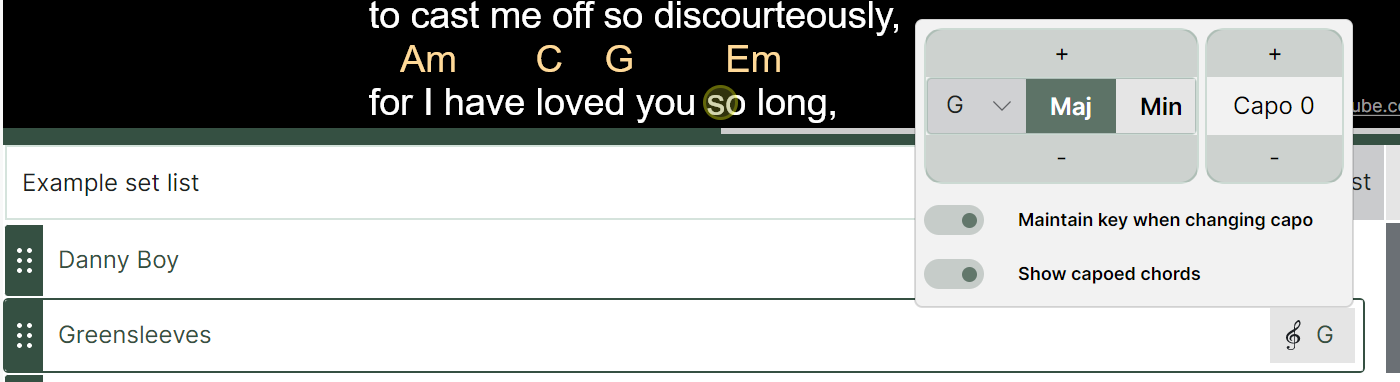
Without a capo applied to a song, changing the key is simple, just select the key you want the song to be played in, and Chordle will transpose it immediately:
Keeping the underlying key the same
With Maintain key when changing capo enabled, the uncapoed key will not be changed when the capo position is adjusted. This means that as the capo position is moved up, the capoed key has to be shifted down to keep the underlying and capoed keys equal.
As a guitarist, this approach is useful if you have a target key that you need to play in, but want to use a capo to find a familiar set of chords to play.
Keeping the capoed key the same
With Maintain capoed key when changing capo turned off, the capoed key will not be changed when the capo position is adjusted. This means that as the capo position is moved up, in order to keep the underlying and capoed keys equal the uncapoed key has to be shifted up as well.
As a guitarist you can use this to increase the pitch of a song without changing the chord shapes. If you were to share the song with a keyboard player using Chordle showing the uncapoed chords, they would be shown the key that they needed to play in to match yours.
Changing song keys in set lists
Changing a song’s key in a set list won’t change it anywhere else. Your library version and other set lists will keep their original keys. This allows you to have different versions of the same song in different set lists, useful if you want to play the same song in different keys on different occasions.
When the set list panel is open, the key picker is shown to the right of the song title in the set list.