
Chordle Drive is Chordle’s own sync service, included with Chordle Personal. It backs up your songs and set lists and keeps every device you sign in on up to date. Syncing a large library to a new device takes seconds rather than minutes.
You need two things: a Chordle Personal subscription on your Chordle account, and the app signed in to that account.
1. Get Chordle Personal
Choose Get Chordle Personal on the pricing page, sign in with Google or Microsoft, and pay. Remember which account you used: the subscription belongs to that sign-in.
If you already have a store license, see moving from a store license first. Buying Chordle Personal doesn’t cancel your store subscription.
2. Sign the app in
The quickest way is from the page you land on after paying: tap Open Chordle. The app opens and signs in with the account you just used, with nothing to choose.
To sign in from the app instead, on any device:
- Open Settings > License.
- Tap Sign in and choose the same provider (Google or Microsoft) and the same email you bought with. A different sign-in is a different Chordle account.
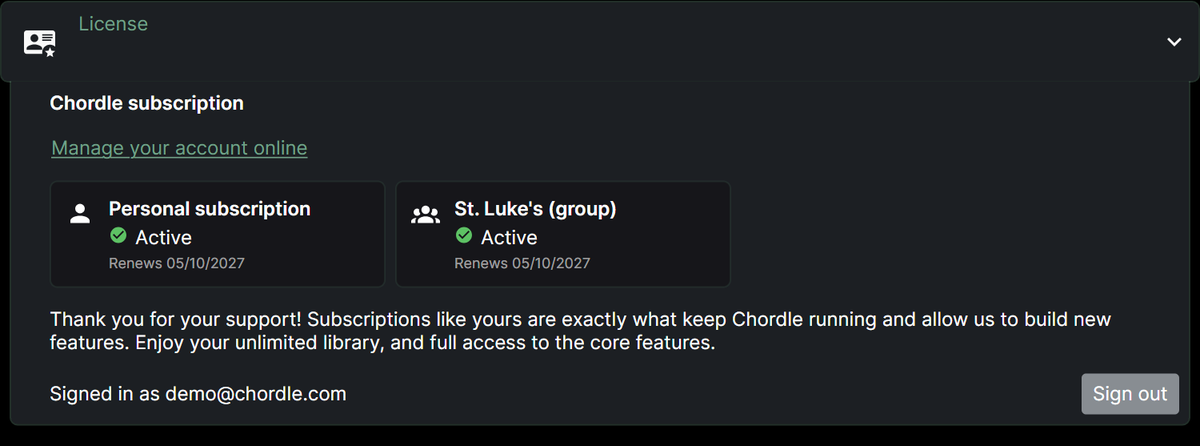
Once you’re signed in, License shows your subscriptions and the account you’re signed in with:
3. Choose what to sync
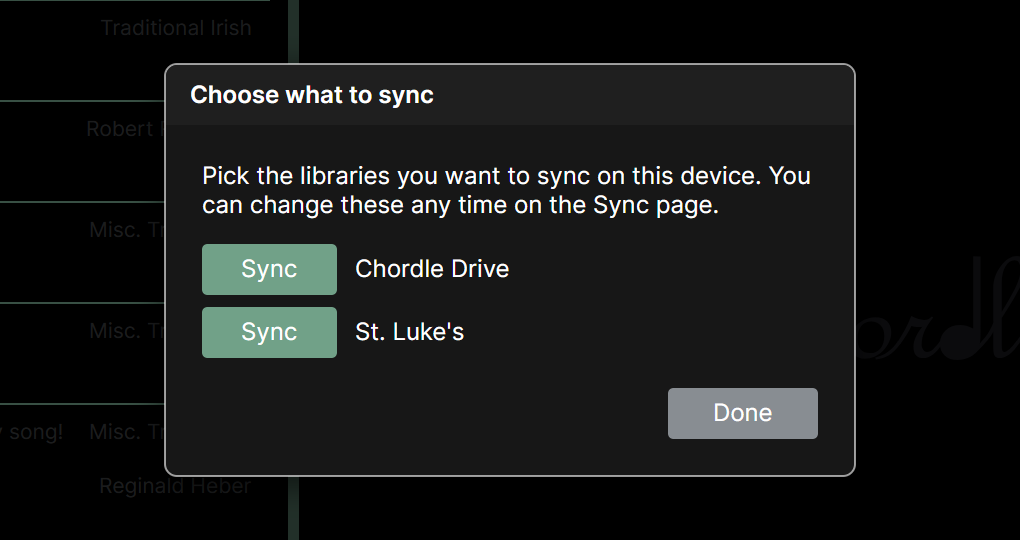
Once you’re signed in, Chordle asks which libraries to sync on this device. Tap Sync next to Chordle Drive, then Done. If you’re in a group, its library is listed here too, by the group’s name.
The first sync uploads your library. On your other devices, sign in the same way and your songs arrive within seconds.
Managing Chordle Drive
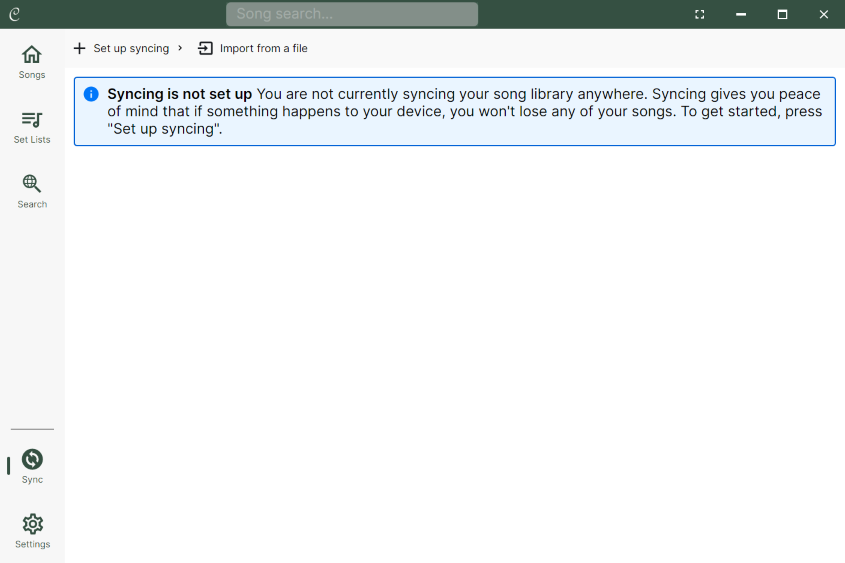
Chordle Drive appears in the sync panel alongside any group libraries and any OneDrive or Google Drive syncing.
You can keep OneDrive or Google Drive running too, to keep a second copy of your songs somewhere else: see syncing with the cloud.
If you turned Chordle Drive off on a device, or chose not to sync it when you signed in, open the sync panel, choose Set up syncing and pick Chordle Drive.
In your Chordle account, Plan and billing shows how many songs and set lists are in Chordle Drive, and Devices lists the devices signed in.
If your subscription ends
Chordle Drive stops syncing and the app goes back to the free plan. The songs on your devices stay there. Resubscribe and syncing picks up where it left off.