
What does syncing do?
Two main benefits:
- It backs up all your songs and set lists. If you lose your device, or reinstall it, you won’t lose your data.
- If you own more than one device, all your songs and set lists are automatically synced between them, so there’s no longer a need to keep exporting and importing manually.
Syncing happens automatically in the background whenever you make a change to your songs or set lists, so you don’t have to do anything after setting it up. If you need to sync straight away, tap Sync now in the sync panel.
Where you can sync
- Chordle Drive is Chordle’s own sync service, included with Chordle Personal. It’s the quickest to set up and the fastest to sync: see set up Chordle Drive.
- Your groups. If you’re in a Chordle group, its shared library syncs as its own entry, named after the group.
- OneDrive and Google Drive sync your library through your own cloud storage. You can use them on their own, or alongside Chordle Drive to keep a second copy of your songs.
Turning syncing on
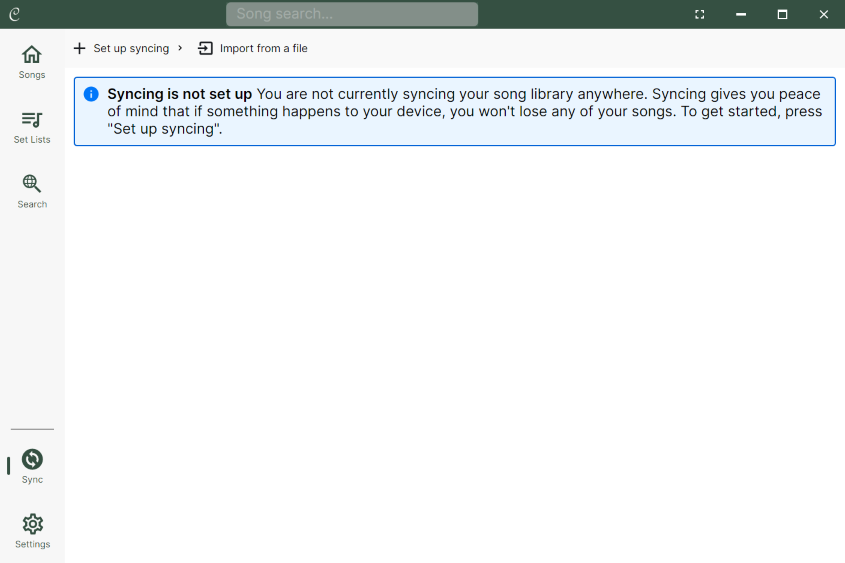
Open the sync panel, choose Set up syncing, and pick where to sync. Chordle Drive and your groups are listed once the app is signed in to your Chordle account.
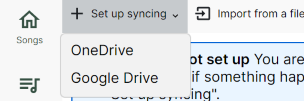
For OneDrive or Google Drive, follow the instructions to sign in and give Chordle access to your storage. Syncing then starts automatically.
If you have a very large song library, the first sync with OneDrive or Google Drive may take a while. Later syncs are much faster.
The services you’re syncing with are shown at the top of the sync panel. You can sync with several at once.
Turning syncing off
To stop syncing with a service, tap the red delete button next to it in the sync panel. Data that has already been synced there isn’t deleted, so if you turn syncing back on later, it picks up where it left off.