Annotations allow you to mark up your songs with handwritten notes and drawings, e.g. adding performance notes to your songs.
You can add annotations using mouse, touch or a pen, and you can choose from a variety of pen colors and thicknesses.
To start annotating, tap the pen icon in the top right of the song view:
From the annotation toolbar you can:
- Select the pen color and thickness (colors are drawn from the current song’s theme)
- Use the eraser tool to erase specific annotations by drawing over them
- Undo the most recent annotation actions
- Erase all annotations on the song (you’ll be asked to confirm)
Annotations are saved once you tap the check button to exit annotation mode.
Annotating set lists
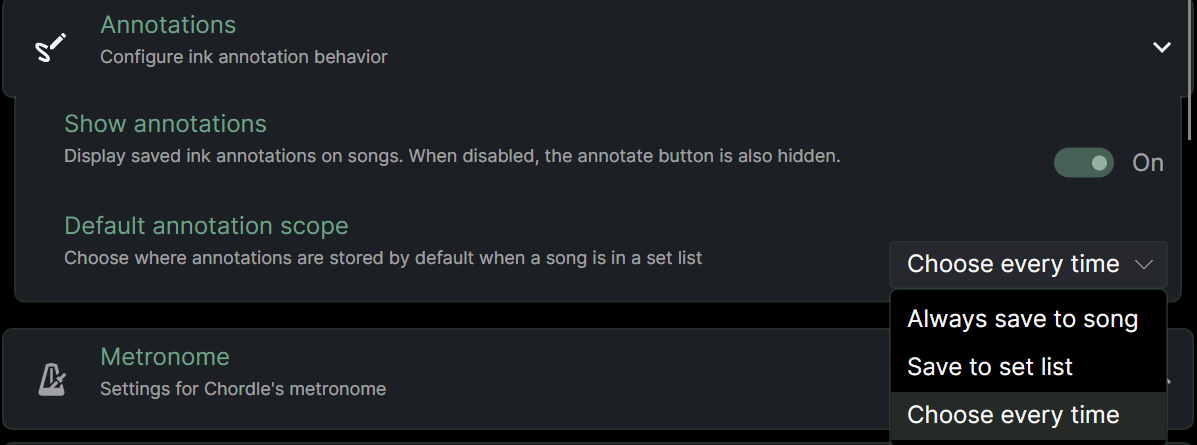
When you start annotating a song from a set list, by default you are asked where you want to save the annotations (the annotation “scope”):
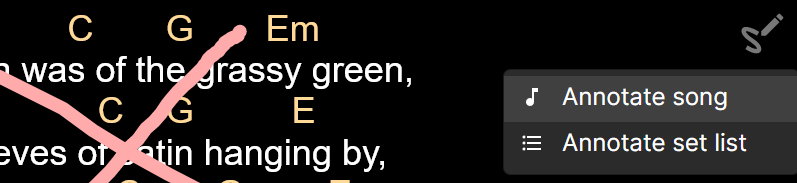
When annotating in this mode, any annotations stored against the other scope will be shown as a faded version of the annotation, so you can see both your song and set list annotations at the same time.
You can change the default behavior of the annotation selection in the Annotation settings section: