
When someone invites you to their Chordle group, you get the group’s shared songs and set lists and unlimited songs in Chordle, paid for by the group. You don’t need to buy anything.
1. Open your invite
Open the link from your invite email, or the join link or QR code your group shared. The page shows which group you’re joining.
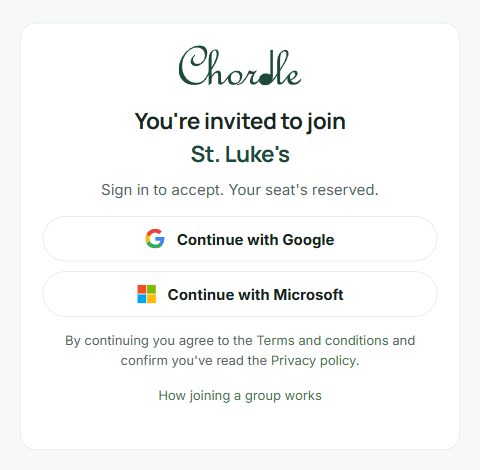
Sign in with Google or Microsoft, then choose Join to take your seat. Signing in creates a free Chordle account if you don’t have one. Any Google or Microsoft account works: it doesn’t have to match the email the invite was sent to. Pick the one you’ll want to use in the app.
Invite links from an email work for 14 days. If yours has expired, ask the person who invited you to resend it.
2. Get the songs on your device
You land on your group’s page, ready to go.
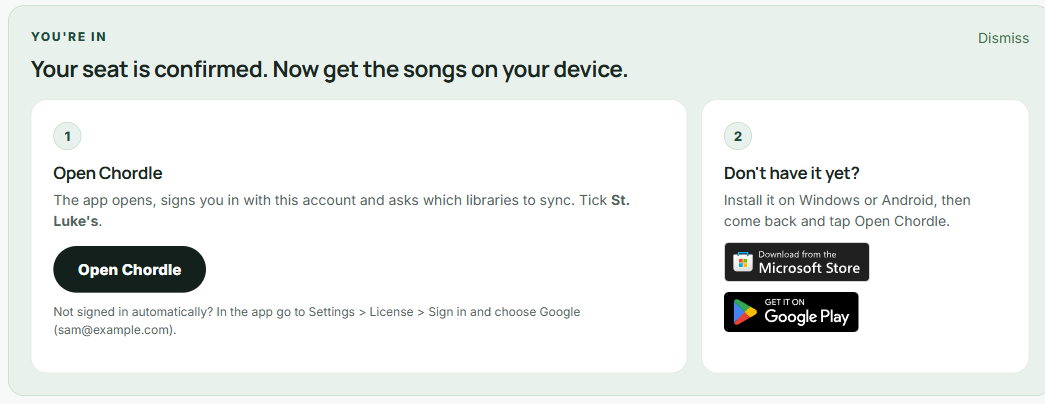
If you already have Chordle installed, tap Open Chordle. The app opens, signs in with the account you just used, and asks which libraries to sync. Tap Sync next to your group’s name, then Done.
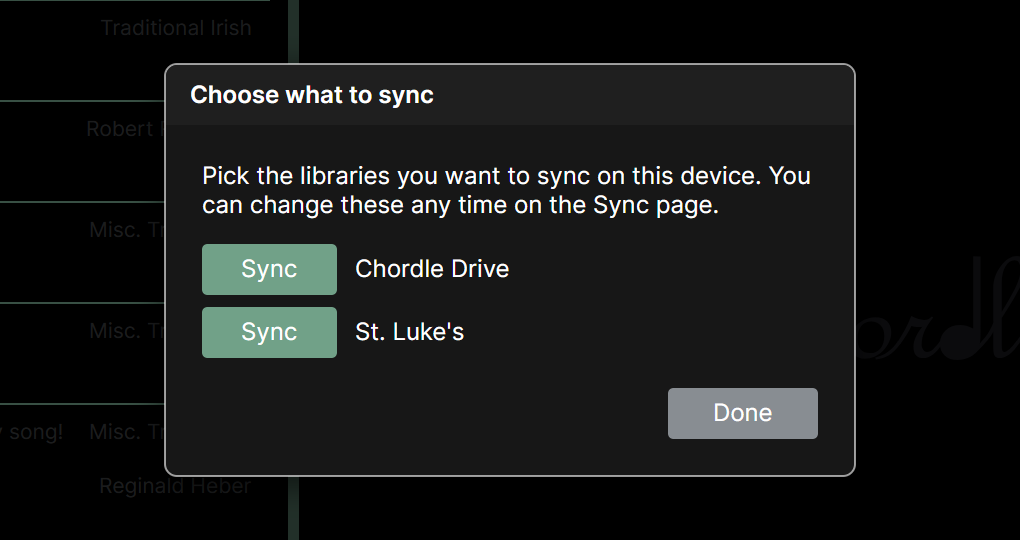
You’ll only see Chordle Drive in this list if you have a Chordle Personal subscription of your own.
Don’t have the app yet? Install it from the Microsoft Store or Google Play, then come back to the group’s page and tap Open Chordle.
To sign in from the app yourself instead, open Settings > License > Sign in and choose the same provider and email you used to join.
What changes in the app
- The group’s songs and set lists appear in your library alongside your own, each marked with the group’s name.
- Your own songs stay yours. Nothing from your personal library is shared with the group.
- Depending on your role, you can play the group’s songs (member) or also add and change them (editor or admin).
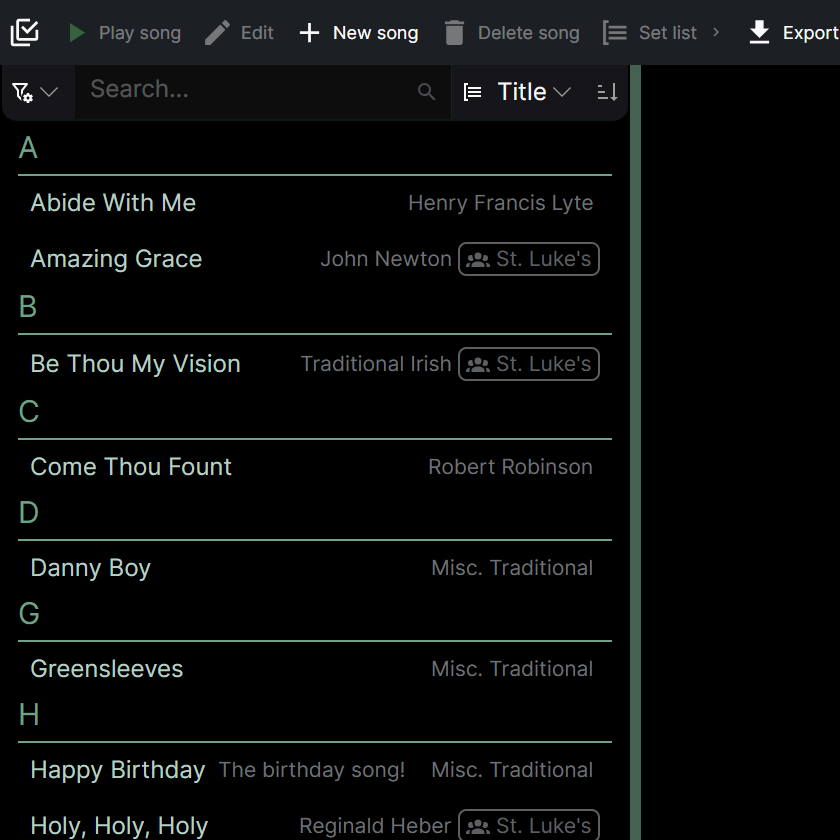
When the library is narrow, the group’s name shrinks to just the group icon. Hover over it, or open the song’s information, to see which group it’s in.
See just the group’s songs
Open the search filters menu next to the search box, choose Results from all sources, and pick your group, or Personal for just your own songs.
A from filter appears above the list while it’s on. Tap its × to see everything again.
On your other devices, sign in the same way and choose your group when asked what to sync.
Leaving a group
Ask one of the group’s admins to remove you. You can see who they are on the group’s page in your Chordle account. You stop getting the group’s songs, the copies already on your devices stay as your own, and your personal library isn’t affected.