
Searching
Searching in your song library is simple - just start typing in the search bar at the top of the song library screen.

By default, Chordle searches for matching text in song titles, song text, and artist names. You can change this by tapping the “Filters” button on the left of the search bar. This opens a menu where you can choose which fields to search:
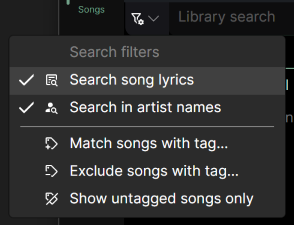
Using the search filters you can also filter your songs by tags, which is a great way to find songs that are suitable for a particular occasion or mood. You can choose to show only songs with a particular tag, exclude songs with a particular tag or show only untagged songs.
Filtering by key and capo
Choose Filter by key and capo… from the search filters menu to find songs in a particular key:
- With No capo you’ll see every song that sounds in that key, whatever capo it uses.
- Pick a capo position to find the songs you play with the same chord shapes and capo. This is handy for grouping songs together in a set so you don’t have to move the capo between them.
Clear all filters in the same menu removes every filter in one go, leaving your search text in place.
Grouping search results
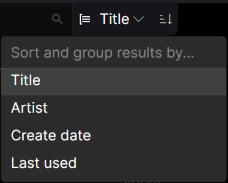
Your song library can be grouped in various ways:
- Title Songs are grouped by the first letter of their titles and alternative titles.
- Artist Songs are grouped by their artist.
- Create date Songs are grouped by the date they were added to your library.
- Last used Songs are grouped by the session/create date of the last set list they were included in.
- Tag Songs are grouped by their tags. Songs with multiple tags appear under each tag group.
The sort direction toggle lets you reverse the order of both the groups and the songs within them.
Quick search
You can also use the quick search feature to quickly find songs in your library without having to navigate to your song library.
When you’re playing full screen, the Search button in the top left of the screen can be used to launch a floating quick search box.

If you find that the quick search button is getting in the way, you can turn it off in the Interface settings section.
Keyboard & mouse You can also launch the quick search box by pressing CTRL + F.