
March 29, 2026
Firstly, thank you for agreeing to help test the new version of Chordle! This is a major update, and we want to make sure it works well for everyone before we release it more widely.
Any feedback you have on the new version, whether it’s a bug report, a suggestion for a new feature or just general thoughts, would be really appreciated. You can send this feedback to us at info@chordle.com.
The more constructive feedback you can provide, the better:
- If you do encounter a bug, please include steps to reproduce it, and any relevant screenshots or logs. You can copy logs from the Logging and error reporting section of the Settings pane.
- When Chordle crashes, the next time it starts up, you will have the option to send a crash report. Please send these to us, as they contain important information that can help us fix the underlying issue. You can also include additional information in the crash report about what you were doing when the crash happened, which can be really helpful for diagnosing the issue.
First use
When first updated, your old libraries will be detected and converted. This may take a few moments. A backup of your old libraries will be created, so if you run into any issues, you can share these with us to help fix the underlying issue.
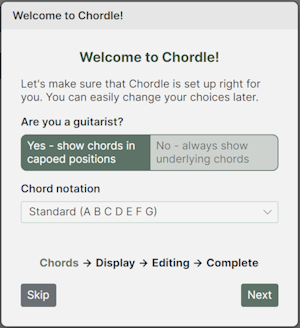
You’ll then be shown the new welcome dialog - step through this to get started.
Navigating around the app
The navigation bar will appear at the side or bottom of the screen, depending on the orientation of your device. You can use this to navigate between the different sections of the app.
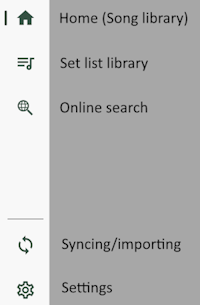
There are various keyboard shortcuts attached to buttons, and you can preview them by holding down CTRL and ALT:

Libraries
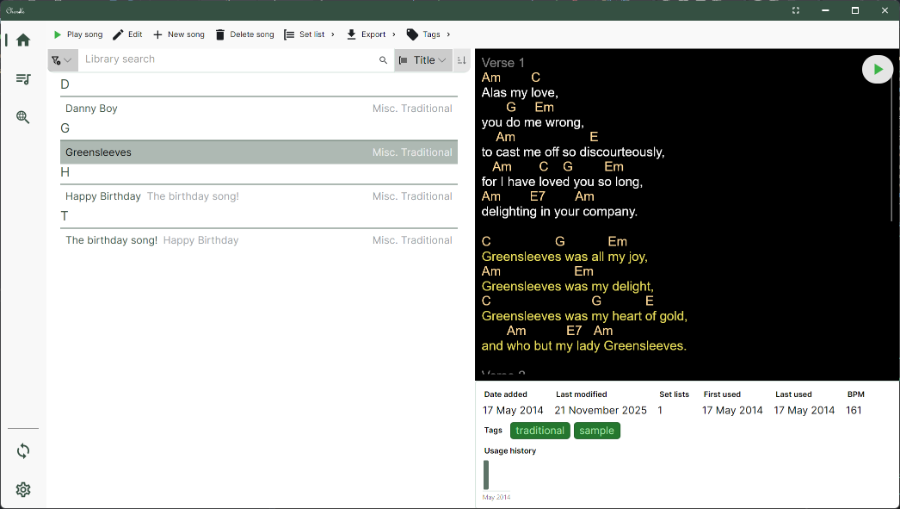
- Selecting a song shows a preview of the song on the right (assuming there’s space).
- There’s also information about the song, including how frequently it’s been included in set lists.
- You play a song by pressing the play button in the toolbar, the play button in the preview or by double tapping on it.
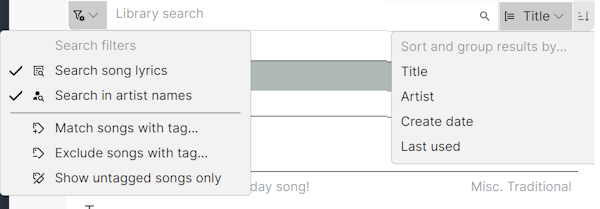
- Searching and filtering is available in the search bar - various filters on the left and ordering of search results on the right:
Playing songs and set lists
When a song is playing the current song bar is shown at the bottom of the screen:

You can change the key of the song by tapping the key signature on the bottom left, and see additional song actions with the vertical ellipsis button on the right.
TIP: Wherever you are in the app, you can always quickly get back to the currently playing song by tapping on its name here!
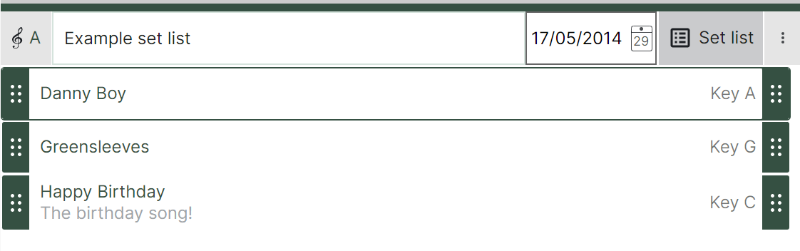
When a set list is open, you can see the songs in the set list by tapping Set list:
Song presentation
Chordle now supports 3 presentation modes:
- Single page, where the words are reduced in size to fit on one screen
- Scrolling, where the song scrolls up as you play it
- Paginated, where you can swipe between pages of the song
Paginated is new, and is designed as a compromise between the other two - it allows you to fit more on the screen than scrolling, but doesn’t reduce the size of the words like single page does. You can switch between these modes in settings.
Metronome
The metronome is more advanced now - it can operate as before with a simple flash:

Or as a multi-beat, which requires that the song is configured with both a tempo and time signature - this example is in 6/8:

Which one shows is configurable in settings.
Song editing
Songs can be edited as ChordPro or Chords Above Text. Changing this setting automatically converts the song to that format, but be aware that Chordle always saves songs in ChordPro format internally. This may lead to some slight changes in the formatting of your songs - if you see any issues with this, please share a copy of the problematic song so we can fix the underlying issue.
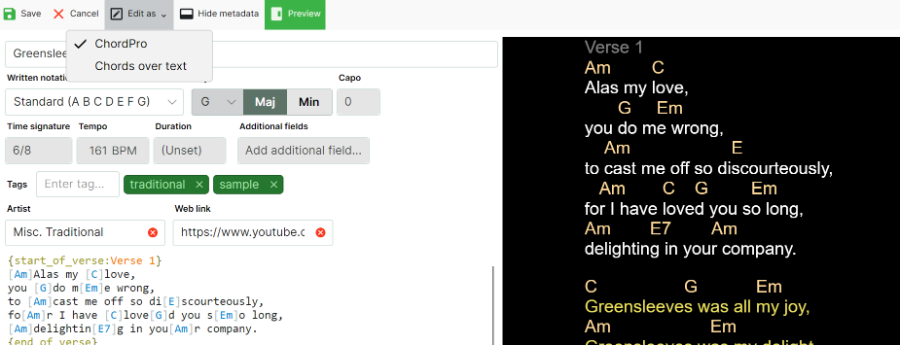
Songs no longer have a separate “written” and “preferred” key. The key that the song is written in is now the only key that is stored. As this is changed, the chords in the song will be transposed to the new preferred key.
There are some advanced editing features that are being experimented with in the beta version, including syntax highlighting of the chords and other element, and the ability to drag and drop chords to reposition them. These are still a work in progress, so any feedback on these features would be really helpful.
Reverting back to the old version
This is technically possible, but because we use a new way of storing songs and set lists, you will lose any changes you have made since upgrading. The process is as follows:
- Make sure Chordle is completely closed.
- Open File Explorer and navigate to
%USERPROFILE%\AppData\Local\Packages\19116MUNKLESOFT.CHORDLE_sjfyx6f2ztysj\LocalState(pasting it into the address bar is the easiest way to get there). Copy this folder’s contents to a safe location, e.g. your desktop. - Contact us to get removed from the beta testing program
- Uninstall Chordle
- In the backup you made of LocalState, unzip the
LegacyLibraryBackup.zipfile so that theSetListsandSongDBfolders are extracted into the same location as the zip file. - Reinstall Chordle
- Without Chordle running, copy the backup of your LocalState back to
%USERPROFILE%\AppData\Local\Packages\19116MUNKLESOFT.CHORDLE_sjfyx6f2ztysj\LocalState, overwriting the existing files.