
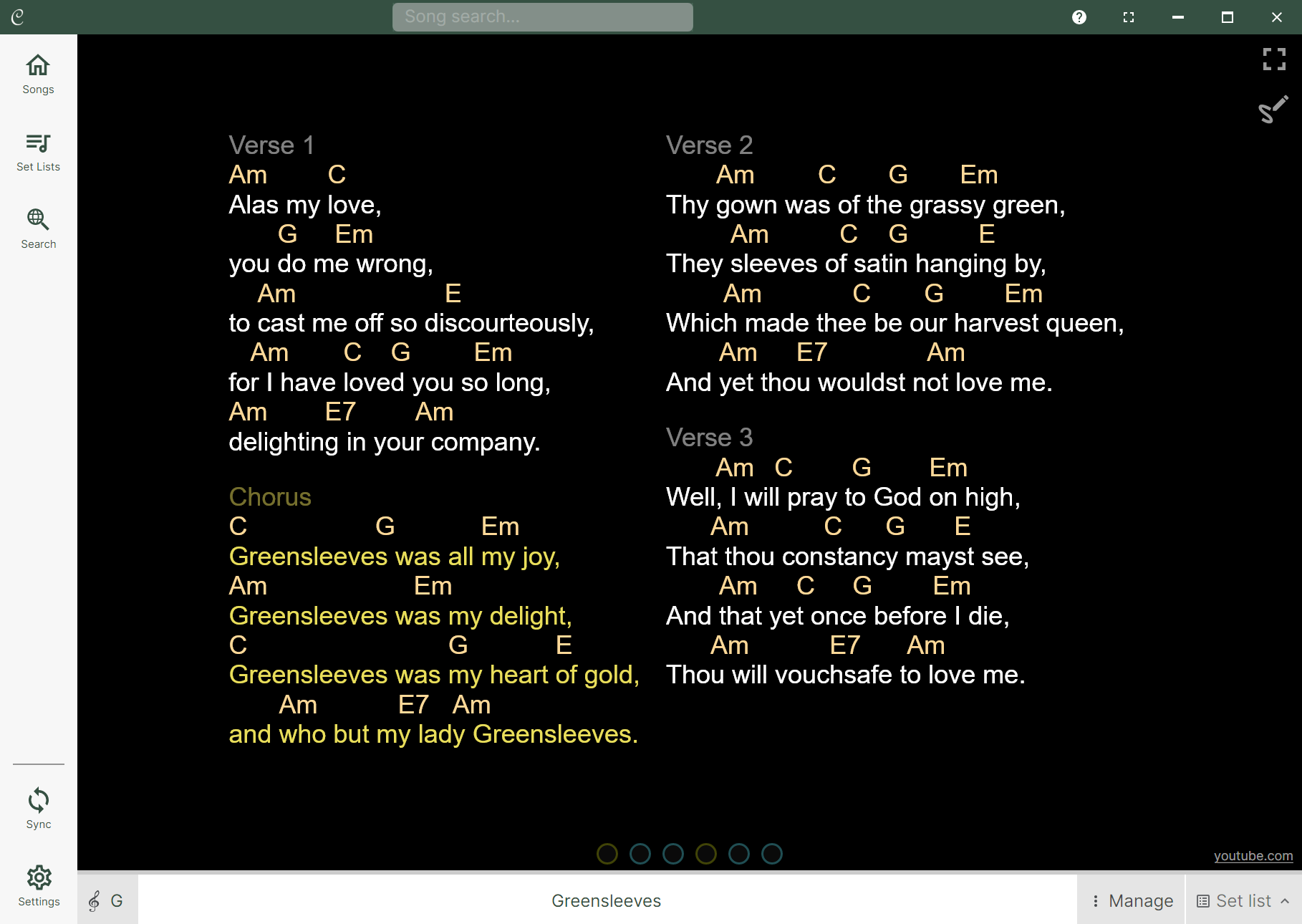
When you play a song or set list in Chordle, it opens in the player and gets the screen to itself, with your song library tucked out of the way so there’s nothing between you and the song. Press the back button to return to your library - the song keeps playing, and on a wide enough display it stays visible in the player pane alongside your library, so you can keep browsing, searching and building set lists while it plays.
Starting a song
How a tap on a song in the library behaves depends on how wide your window is:
- Wide window - a single tap plays the song into the player pane beside your library, so you can carry on browsing. A double-tap (or double-click) plays it and gives the song the screen to itself.
- Narrow window or phone - a single tap just selects the song; a double-tap plays it and gives it the screen.
You can also play the selected song using the play button in the toolbar or in the song preview.
On Windows, the song fills Chordle’s window rather than taking over your whole screen, so you can still see your other apps. Turn on Take over the screen when playing under Settings / Interface to go straight to full screen instead.
Player controls
The player controls at the bottom have different options depending on whether you’re playing a single song or a set list.
Once a song is playing, these controls are visible at the bottom of the screen wherever you are in the app. You can quickly get back to the song or set list you’re playing by tapping on the song title.
Playing a single song
When playing a single song the controls are simple:

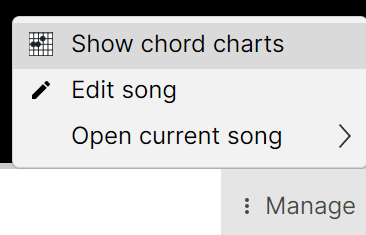
You can use the Key selector button to quickly change the key and capo of the song while you’re playing it. The Manage menu (three vertical dots) gives you quick access to actions like showing the chords for the song or opening it in an external app:
Playing set lists
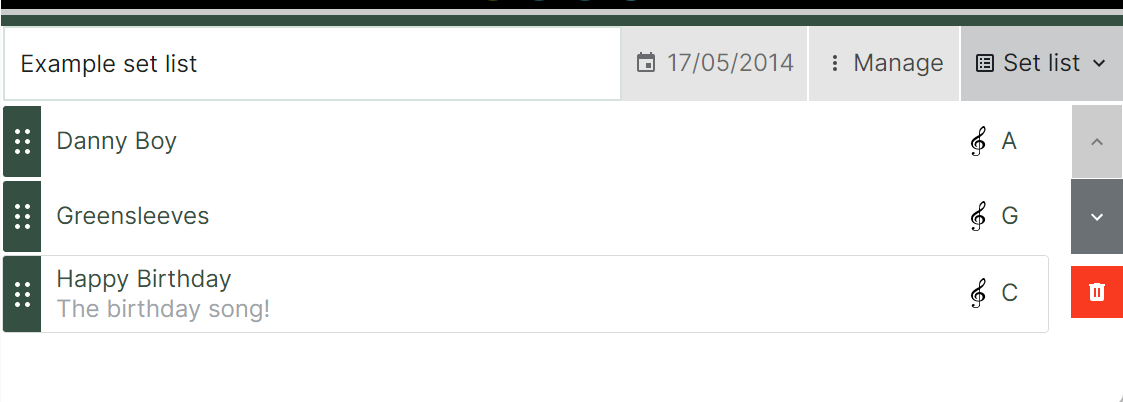
When playing a set list, the player controls also include a button to hide and show the set list:

Tapping on the set list expands it, showing the songs in the set list editor. You can tap any song to quickly jump to it:
Switching between playlist songs
When playing a set list, swiping left and right on the song will move between songs in the set list.
When in paginated mode, swiping left and right moves between pages of the song. Once all pages are exhausted, swiping continues to the next song in the set list. You can also use the next and previous buttons in the player controls to move between songs regardless of the pagination state.

Other player features
In the top right of the screen, there are additional feature buttons:
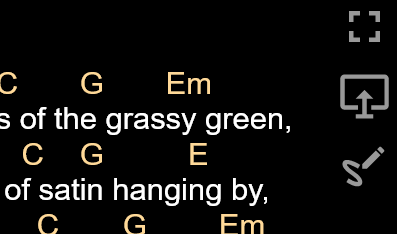
From top to bottom, these buttons are:
- Full screen - drops the window entirely so the song fills your whole display, hiding the title bar and taskbar too. You can still swipe between songs in a set list while in full screen mode. See Full screen below, or press the back button to leave the player and return to your library.
- Present to external display - shows the song on an external display, useful for larger audiences or stage setups.
- Ink annotations - lets you draw directly on the song.
Full screen
On Windows, going full screen hides everything else - the title bar, your taskbar and any other apps - so the song fills the whole display. It’s the same view you get when playing a song, just without the window around it, and it’s ideal for performing. On a phone or tablet playing already fills the screen, so there’s nothing further to hide.
Press the full screen button in the top right of the player (or F11) to go full screen, and press it again to come back to the window. To leave the player entirely and return to your library, press the back button instead - back always takes you back to your library, whether you’re full screen or not.
Whether the library starts hidden every time you play is controlled by the Always hide the library when playing setting under Settings / Interface. Leave it on and the library is tucked away each time; turn it off and it stays however you last left it.
There are two ways to bring things back without leaving the song:
- Reveal the library - tap the reveal button in the top left of the player. This brings the song library back into view so you can pick another song. If your set list is docked to the left or right, it reappears alongside the library.
- Reveal the player controls - in full screen, with a mouse move to the bottom of the screen, or on a touch screen tap the bottom of the screen. The player controls slide back up, and if your set list is docked at the bottom it reappears with them.