
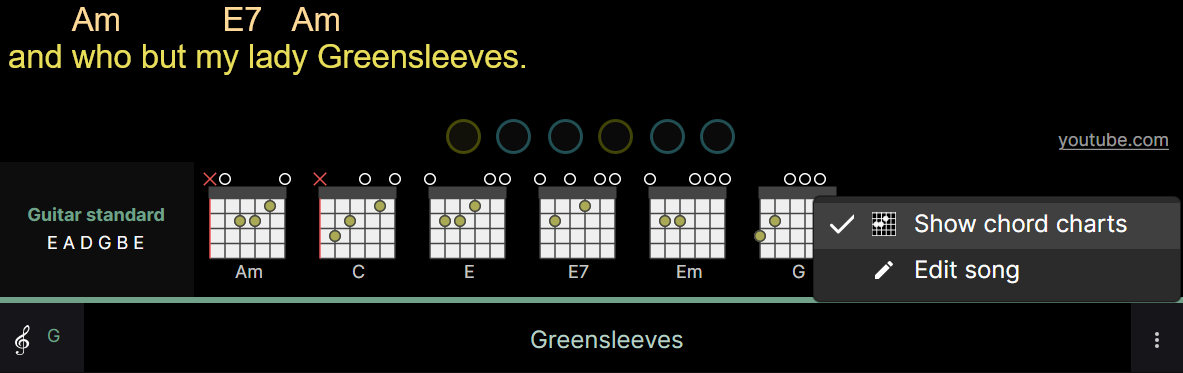
Chordle will automatically generate chord diagrams for all the chords it finds in a song. To show them, choose the Show chord charts option from the menu at the bottom of the screen:
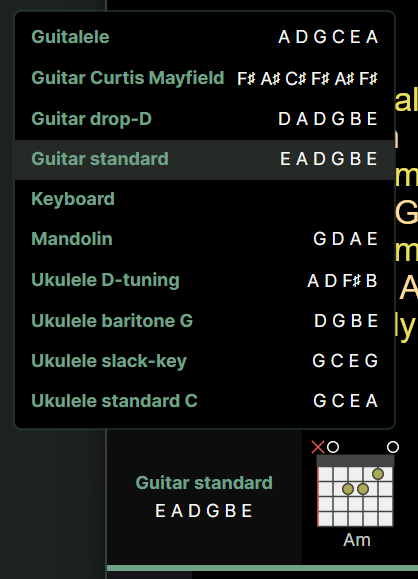
Instrument selection
You can select from a number of instruments for which to show the chord diagrams:
Your own instruments
If the instrument or tuning you play isn’t in the list, you can create it. Open the Instruments section of the settings and choose Add instrument under My instruments.
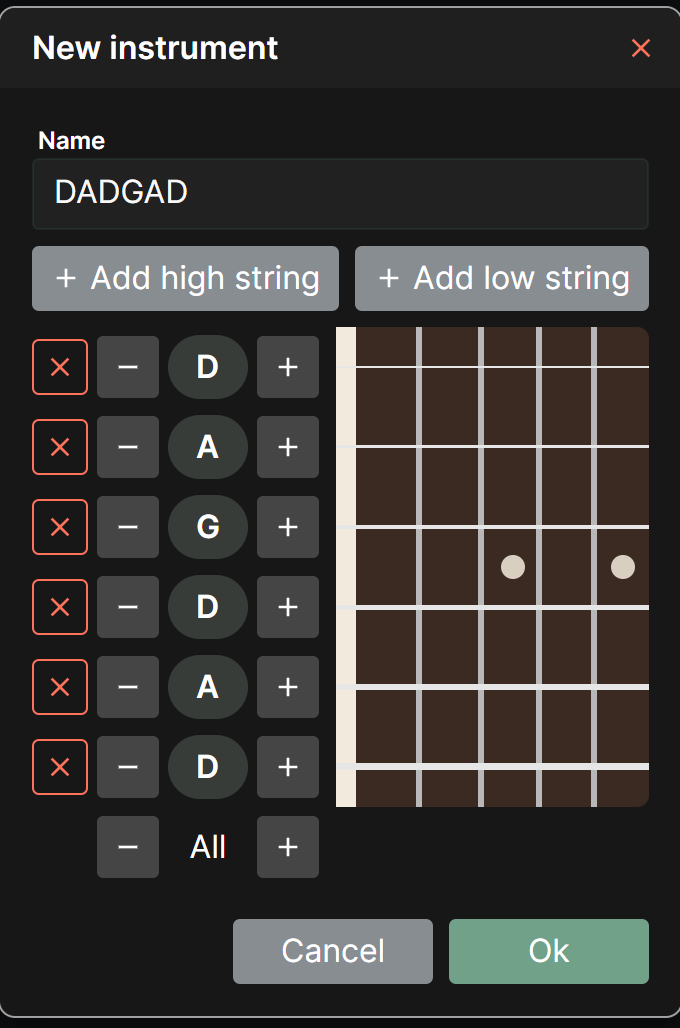
- Give the instrument a name, such as Seven string guitar or DADGAD.
- Use Add high string and Add low string to set the number of strings, anywhere from 3 to 12.
- Strings are listed with the highest at the top, as in tablature. Tap the cross next to a string to remove it.
- Tune each string up or down a semitone at a time, or use All to shift the whole tuning at once, which is handy for tuning down a half step.
Your instruments appear in the instrument list alongside the built-in ones, and chord diagrams and variations work for them in exactly the same way.
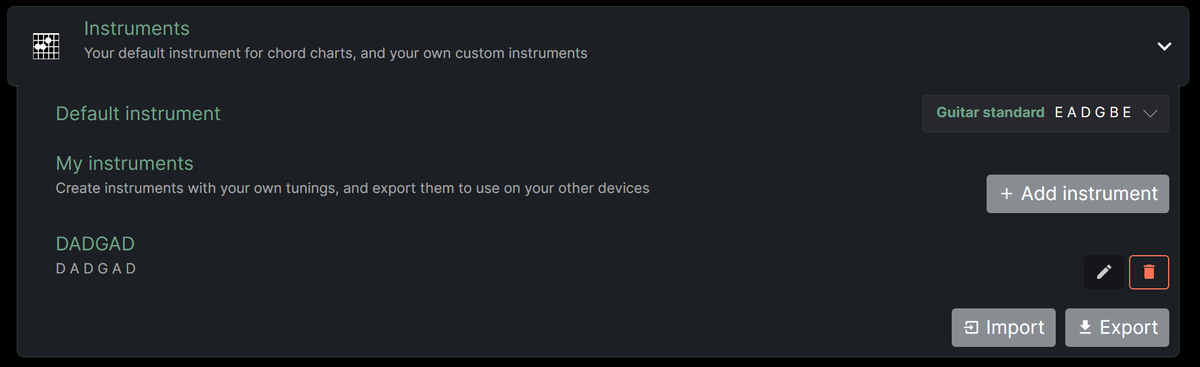
When a song set to one of your instruments syncs to another device, or is exported and imported elsewhere, the instrument is added there automatically. To copy all of your instruments in one go, use Export and Import in the Instruments settings.
Chord fingering variations
Each chord can be pressed to reveal a selection of other fingering variations, as well as the notes that make up the chord. Any of these variations can be selected as the chord to show for the song you currently have open:
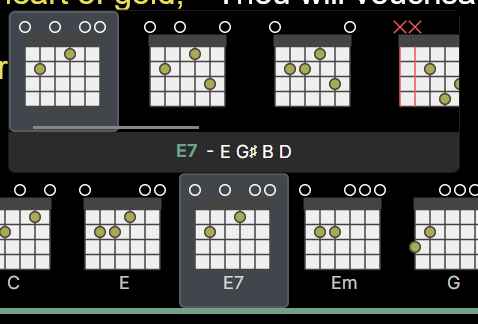
Selecting a different variation will update the chord diagram shown in the song, and your selection will be saved as part of the song.
Choosing the default instrument
The default instrument can be selected in the settings screen.
