
The song header shows details about a song, such as its title, key and tempo, at the top of the song while you play it. You choose what goes in the header once, and Chordle fills it in for every song, so there’s no need to type these details into each song.
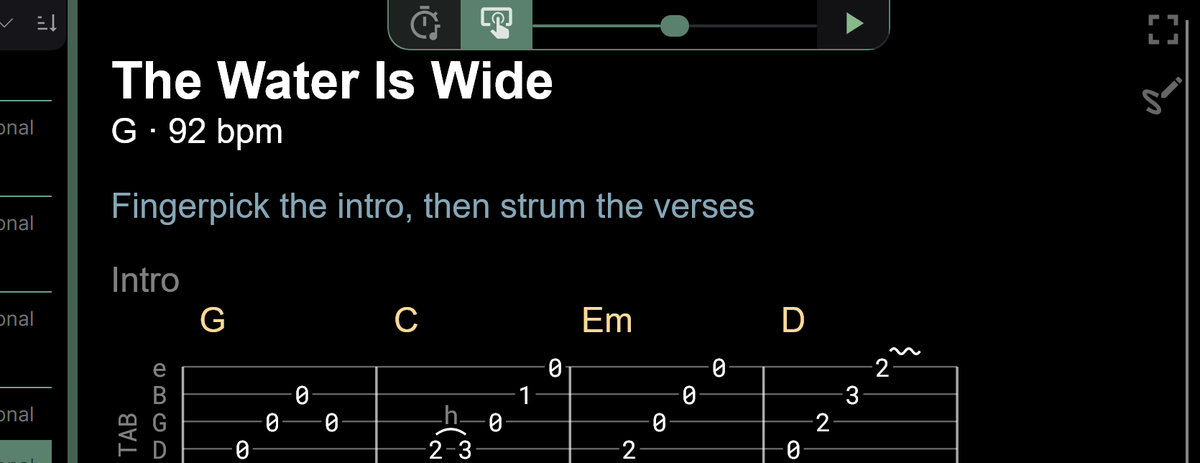
The header is shown in the player and in the song editor’s preview. It isn’t included when you print or export songs, because printed pages already have their own header.
Turning the header on or off
Open Settings, expand Song header and use the Show song header switch.
If you’re new to Chordle the header starts off turned on, showing the song title with the key, capo and tempo underneath. If you’ve been using Chordle since before the header was added, it starts off turned off so your songs look the same as they always have.
On a wide enough screen, a preview next to the settings shows how the header will look as you change it.
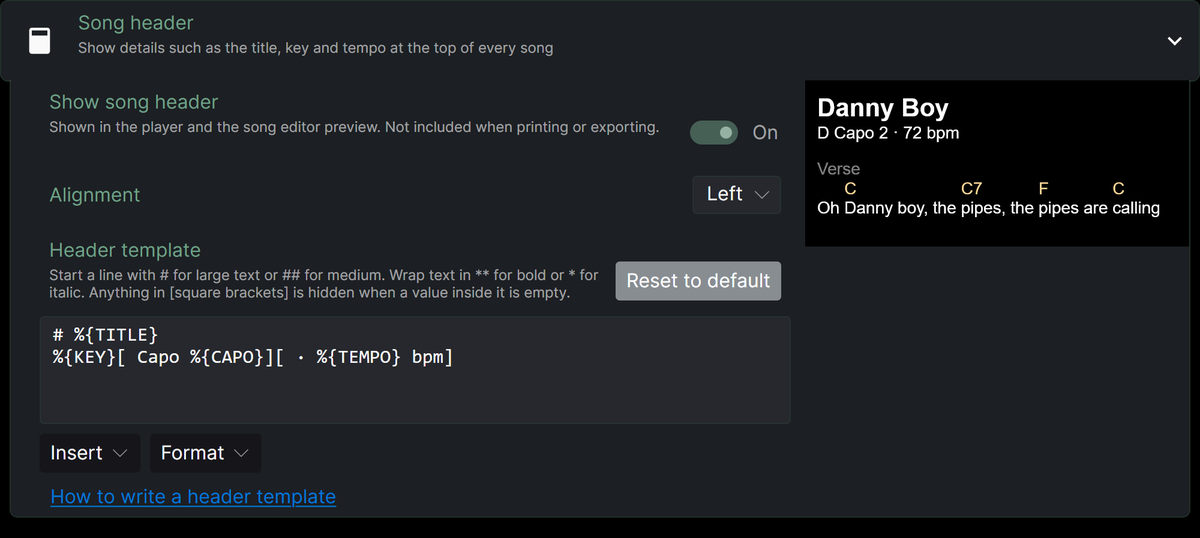
Writing a header template
The Header template box controls what the header shows. Each line of the template becomes a line in the header.
Values from the song are written as %{NAME}. You can type them, or pick them from the Insert menu below the template box to add them at the cursor:
| Value | Shows |
|---|---|
%{TITLE} |
The song title |
%{SUBTITLE} |
The song’s alternative title |
%{ARTIST} |
The artist |
%{KEY} |
The key the song is playing in |
%{CAPO} |
The capo position (empty when there’s no capo) |
%{TEMPO} |
The tempo in beats per minute |
%{COPYRIGHT} |
The copyright text |
%{NOTES} |
The song’s notes |
%{META:name} |
A custom field called name from the song (see below) |
%{KEY} and %{CAPO} follow what you’re actually playing, so if you change the key of a song in a set list the header shows the new key.
The default template is:
# %{TITLE}
%{KEY}[ Capo %{CAPO}][ · %{TEMPO} bpm]
Formatting
- Start a line with
#for large text, or##for medium text. - Wrap text in
**for bold, for example**Key** %{KEY}. - Wrap text in
*for italic, for example*%{ARTIST}*.
The Format menu inserts these for you. If you select some text first, Bold, Italic and Hide if empty wrap the selected text.
Hiding parts that have no value
Not every song has every detail filled in. Chordle tidies up the header in two ways:
- Anything in square brackets is hidden when a value inside it is empty. In the default template,
[ Capo %{CAPO}]is only shown for songs played with a capo, and[ · %{TEMPO} bpm]only for songs that have a tempo, so a song with neither shows just its key rather thanG Capo · bpm. - A line is hidden when all of its values are empty. For example, a line
Style: %{ARTIST}disappears for songs with no artist.
If you need a literal square bracket or asterisk in the header, put a backslash in front of it, for example \[ or \*.
Alignment
Use Alignment to place the whole header on the left, in the centre or on the right of the song.
Notes and custom fields
Keyboard players and others with per-song setup reminders can store them in the song itself instead of abusing the alternative title. Open a song in the editor, tap Add additional field… and choose:
- Notes for free-form style, sound and transposition notes.
- Custom field for a named value such as the patch or groove. Type the field’s name in the first box and its value in the second. You can add as many custom fields as you like.
Remove a field with the x button at its end.
In the header template, %{NOTES} shows the notes and %{META:name} shows the custom field called name. Field names are case-insensitive: %{META:groove} finds a field stored as Groove. If a field appears more than once in a song, all of its values are shown in order, separated by commas. As with every other value, a line or [bracketed group] whose fields are all empty is hidden.
Custom fields are stored in the song as {meta: name value} lines, so they sync to all your devices along with everything else. The notes are stored the same way, as {meta: notes ...}. If you edit ChordPro by hand, you can write these lines yourself:
{meta: notes Gentle fingerpicked intro}
{meta: groove Slow waltz}
To add a custom field to the header template, choose Custom field from the Insert menu below the template box: it adds %{META:} with the cursor inside the braces, so you just type the field name.
Starting again
Reset to default puts the template back to the default shown above.
Examples
Title and artist, with the capo only when there is one:
# %{TITLE}
*%{ARTIST}*
%{KEY}[, capo %{CAPO}]
A compact single line:
**%{TITLE}** · %{KEY}[ · %{TEMPO} bpm]