
A chord grid lays out chords in bars, with the barlines lined up from one row to the next. Grids are ideal for intros, solos and chord progressions where there are no lyrics to put the chords over.
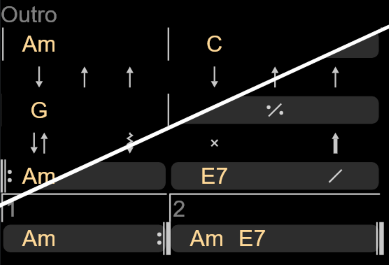
Writing a grid
How you mark a block of text as a grid depends on the format you use to edit your songs:
- In Chords above text format, start a line with
[Grid]. The grid runs until the next blank line. You can add a title with[Grid label="Outro"]. - In ChordPro format, use
{start_of_grid}and{end_of_grid}, or the short forms{sog}and{eog}.
The quick way
The easiest way to write a grid is to put one chord in each bar, separated by spaces:
[Grid]
C F Am G
This gives you four bars, each with one chord. You can use a few extras to describe more:
| You write | Meaning |
|---|---|
Dm7_G7 |
Two chords sharing one bar, half each |
A~D |
Two chords on the same beat |
% |
Repeat the previous bar |
%% |
Repeat the previous two bars |
* |
A bar you haven’t worked out yet. It is left blank, but keeps its width |
(C F Am G)3x |
Repeat the bars in brackets, three times |
|| |
A double barline |
<- Intro |
A label to the left of the row below |
>- Repeat 4 times |
A note to the right of the row below |
- Solo |
A note on its own line between rows |
The detailed way
When you need more control, write the barlines yourself and put each beat in the bar. Chordle will line up bars with the same number of beats.
[Grid label="Verse"]
|| Am . . . | C . . . | D  . . . | F  . . . |
|  Am . . . | C . . . | E  . . . | E  . . . |
|  Am . . . | C . . . | D  . . . | F  . . . |
|  Am . . . | E . . . | Am . . . | Am . . . ||
Inside a bar, each space separated word is one beat:
| You write | Meaning |
|---|---|
Am, G7, … |
A chord |
. |
A beat with no new chord |
/ |
Strike the current chord again |
F~G |
Two chords on one beat |
% |
Play the same as the previous bar |
%% |
Play the same as the previous two bars |
Barlines come in these forms:
| You write | Meaning |
|---|---|
| |
Single barline |
|| |
Double barline |
|. |
End barline |
|: |
Start of a repeat |
:| |
End of a repeat. Add x3 after it to say how many times |
:|: |
End of one repeat and start of the next |
|1, :|2 |
First and second endings (voltas) |
Any text before the first barline in a row is shown in the left margin, and any text after the last barline is shown in the right margin. For example, Coda | D7 . | ... :| repeat 4 times.
In ChordPro, you can also give the grid a title with {start_of_grid label="Intro"}, and set its shape, for example {start_of_grid shape="1+4x2+1"} for one margin cell on each side and four bars of two beats.
Strum patterns
Start a row with |S straight after the first barline to show strum arrows under the chord row above it. Use |s to show only the arrows, without the barlines.
uis an upstroke anddnordis a downstroke. Writedn~uto put both in the same beat.- Add
afor an arpeggio,sfor staccato orxfor muted. A plainxis a muted strum with no direction. - Add
+to accent a stroke.
A complete example
This grid uses most of the features above, written in ChordPro format:
{sog: label="Outro"}
|| Am . . | C . . | G . . | % |
|s dn u u | dn u u | dn~u . da | x . u+ |
|: Am . . | E7 . / |1 Am . . :|2 Am~E7 . . |.
{eog}
- The grid is titled Outro, and begins with a double barline.
- The first row has four bars of three beats, and the last bar uses
%to repeat the one before it. - The second row is a strum row. Because it starts with
|s, only the arrows are drawn, lined up under the chords above. - The third row starts a repeat with
|:.E7 . /ends with a play-here slash, then first and second endings follow, the second ending having two chords on one beat (Am~E7). The final|.is an end barline.
Grid style
Chordle can draw grids in two styles, which you can choose between using the Chord grid style option in the Song presentation section of the settings.
- Flat - the default. Bars are separated by thin barlines, like a traditional chord chart.
- Blocks - each bar is drawn as a panel, which is easier to follow at a glance when you’re on stage.
The style applies to every song, and only changes the way grids look. Their layout and contents are the same either way. The grid in the picture above uses Blocks.
You can change the colours used for grids using the Grid colour in your song colour theme.
Transposing
Chords in grids change with the rest of the song when you change its key. Margin text, labels and notes are left alone.
Narrow screens
If a grid is the widest thing in your song and wouldn’t fit on screen, Chordle splits its rows into shorter ones so the song doesn’t need to shrink. Four bars might be shown as two rows of two, for example. Repeat barlines are split correctly, and strum rows stay with their chords. When there is room again, grids go back to the rows you wrote.
When Chordle can’t draw the grid
If Chordle can’t understand a row in a grid, for example when it contains a word that isn’t a chord, it shows that row as plain text instead, so you never lose content.
See also
- Lyrics only - grids are hidden when you choose Lyrics only in the song presentation settings.
- Word export - when you export to Word, each grid is included as a picture that looks the same as it does in Chordle, in the key you exported and sized to fit the page. Turn off Draw grids and tablature as pictures in the export options if you would rather have editable text. Grids are left out of Word exports when chords are turned off.