
The settings pane is divided into sections, each controlling a different aspect of Chordle. Tap a section to expand it.
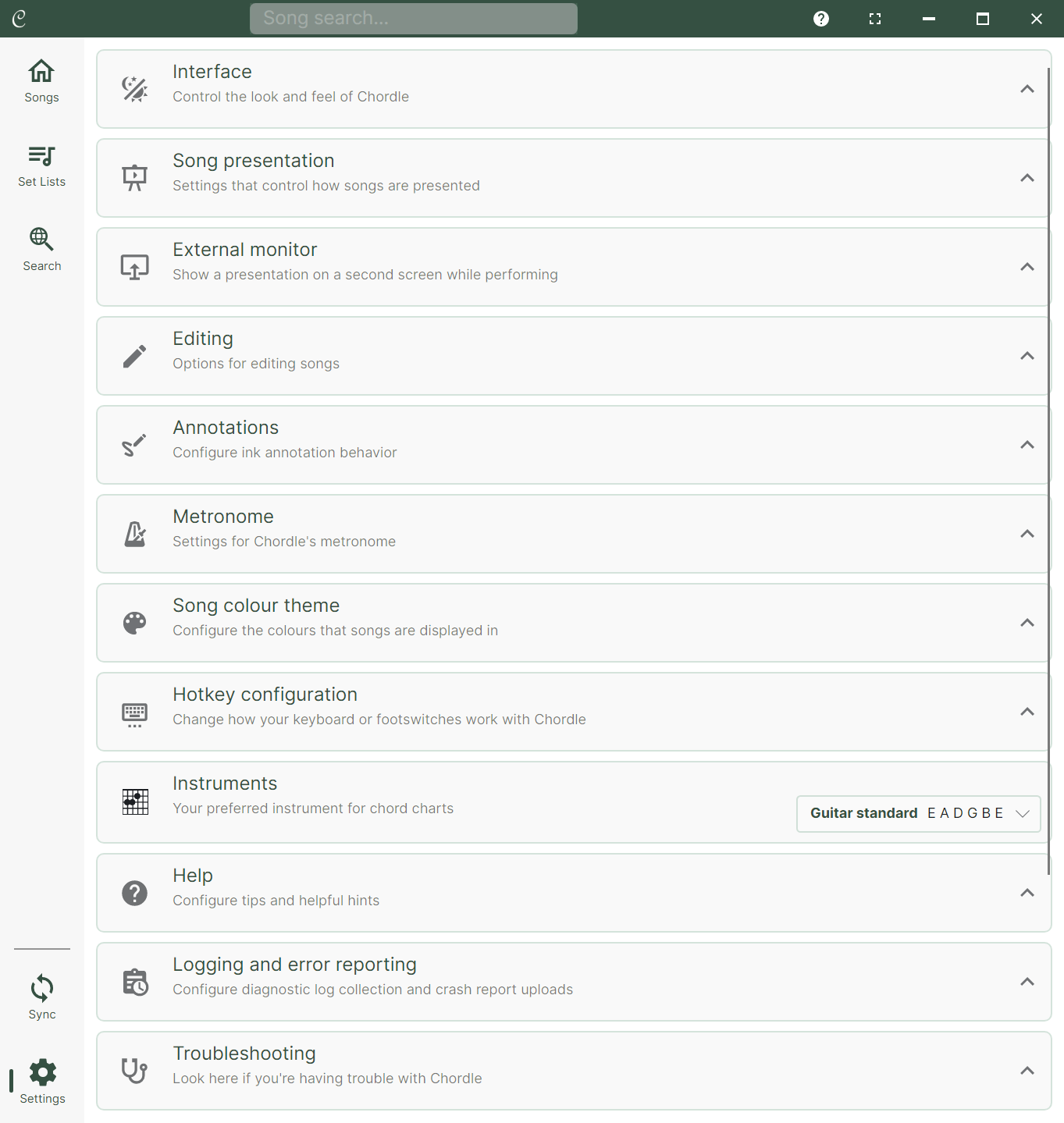
Interface
Controls the general look and feel of Chordle:
- UI theme - choose between light, dark, or system default.
- List density - adjust the text size and spacing of the song and set list rows in your libraries. Compact shrinks the font and padding to fit more on screen, Sparse gives each row more room, and Normal is the default.
- Show navigation labels - show or hide the text labels beneath the navigation bar icons.
- Enable animations - animate page transitions and other interface elements. Turn this off if animations feel distracting or slow on your device.
- Show fullscreen quick search button - show a quick search button when in fullscreen mode. The keyboard shortcut (
Ctrl+F) always works regardless of this setting. - Take over the screen when playing (Windows only) - fill the whole screen when you play a song, hiding the title bar and taskbar. Turn this off to keep Chordle in its window so you can see your other apps - the song still fills the window either way. On a phone or tablet there’s no window to stay in, so playing always fills the screen and this option isn’t shown. See Playing songs.
- Always hide the library when playing - hide the song library and set list every time you start playing, even if you had them showing last time. Turn this off to keep them however you last left them. Either way, the reveal button on the player shows and hides them. See Playing songs.
- Set list position - choose where the currently playing set list appears: along the bottom with the player controls, or docked to the left or right so it stays beside your library. See Docking the set list.
- Require double-tap to change songs - when enabled, switching to the next or previous song requires a double-tap instead of a single tap or swipe. Useful if you tend to accidentally change songs while scrolling.
- Double-tap set list - choose what happens when you double-tap a set list in the library (for example, opening it or starting it immediately).
Song presentation
Controls how songs are displayed when you’re playing them:
- Song layout - choose between different layout styles for presenting songs. See Song presentation modes for more information.
- Capo reminder - configure a visual reminder when a song requires a capo.
- Always show uncapoed chords - when enabled, the underlying (uncapoed) chord names are always shown alongside the capoed ones. Most guitarists will want to leave this off.
- Reduce slash chords when only bass note changes - simplifies consecutive slash chords by showing only the changing bass note. For example,
G/B G/F♯becomesG/B /F♯. - Display notation - choose how chords are displayed (e.g. Standard (
A B C D E F G), German (A H C D E F G), Latin (DO RE MI FA SOL LA SI), Nashville Number System). Songs can be stored in any notation, and this setting controls how they are presented to you. - Chord grid style - choose whether chord grids are drawn with thin barlines (Flat) or with each bar as a panel (Blocks).
- Show section headers - toggle the display of section labels such as Verse and Chorus.
- Lyrics only - hide chord and tab sections, showing only the lyrics.
- Text style - choose how song text is rendered. The Typewriter style can be useful if you’re used to editing with chords above text and want to guarantee that chord alignment is preserved.
- Text size - set your preferred font size. If the song text is too large to fit on screen, it will be automatically scaled down.
- Chord spacing - set the minimum gap between adjacent chords on the same line.
- Connect split words - draw a line across gaps where a chord forces a word to be split apart.
External monitor
(Windows only) Controls a second screen presentation while you perform. See External monitor for full details.
- Show Present button - show a button in the song player to start a presentation on an external display.
- Presentation mode - choose what is shown on the external display.
- Custom font size - override the font size on the external display independently of the main display.
Editing
- Song editing format - choose how the song editor presents songs to you when editing (e.g. ChordPro or chords above text).
- When pasting tab characters - tabs can cause alignment problems in song text, so the editor will automatically adjust them when they’re pasted in. This setting controls how that adjustment is handled.
See Editing songs for more on the song editor.
Annotations
Controls ink annotation behavior. See Ink annotations for full details.
- Show annotations - display saved ink annotations on songs. When disabled, the annotate button is also hidden.
- Default annotation scope - choose where annotations are stored by default when a song is open via a set list (either the shared song annotation, or a set-list-specific one).
Metronome
Controls the visual and audio metronome. See Visual metronome and Audio metronome for full details.
- Enable audio metronome - play a sound on each beat while a song with a tempo is playing.
- Only play audio while playing a song - only play the audio metronome once a song has the screen to itself, staying silent while you’re browsing with a song open beside your library.
- Accent sound - the sound played on the first beat of each bar (only used when a time signature is set).
- Beat sound - the sound played on each regular beat. You can preview both sounds before choosing them.
- Volume - how loud the metronome sounds are.
- Show visual metronome - when a song has a tempo specified, a visual metronome is shown at the bottom of the screen.
- Use multi-beat metronome - when a song also has a time signature, show all beats of the bar rather than a single beat. When turned off, a simple single-beat metronome is used.
- Primary and secondary beat colors - customize the colors of the metronome beats.
- Beat size - adjust the size of the metronome indicator.
Song color theme
Customize the colors that songs are displayed in. You can pick from a set of presets or configure your own colors for the background and each section type. A live preview is shown alongside the settings.
Hotkey configuration
Customize the keyboard or foot pedal shortcuts used while performing. See Keyboard and pedal shortcuts for the full list of available shortcuts and how to change them.
Song hotkey buttons
Add up to three quick-access buttons to each side of the song player, giving you one-tap access to any hotkey action while you’re playing without needing a keyboard or pedal. See Song player hotkey buttons for full details.
Instruments
Set your preferred instrument for chord charts.
Help
Quick links to open the Chordle help pages, or contact us, as well as:
- Show tips - enable or disable the contextual tips that appear as you use Chordle.
- Reset all tips - show all previously dismissed tips again from the beginning.
Logging and error reporting
Controls diagnostic data collection. See Getting diagnostic logs for guidance on using these settings when troubleshooting.
- Send anonymous analytics - allow Chordle to send anonymous usage data to help improve the app. No personal data or song content is included.
- Error report uploads - choose when crash reports are sent: always, never, or ask each time.
- Log level - set the verbosity of Chordle’s diagnostic log.
Informationis the default. If you’re investigating a specific problem, switching to “Verbose” can help capture more detail. The setting takes effect immediately - no restart needed. - Copy logs - copies the current session log to the clipboard so you can paste it into an email.
- Send log report - sends the current session log directly to us. A preview is shown before anything is submitted.
- Screenshot behavior - choose whether taking a screenshot saves a file or copies it to the clipboard.
Troubleshooting
Contains reset and repair options for when something isn’t working correctly. These actions are generally only needed if advised by support.
- Reset all preferences - restores all settings to their factory defaults.
- Recreate database - resets your local database of songs and set lists. This will delete your local data - only use this if instructed to, and ensure your library is backed up via cloud syncing first.
- Reset search index - rebuilds the search index used by the song library. Use this if search results appear incomplete or incorrect.