
When you play a song or set list in Chordle, it opens in the player. On a wide enough window the player appears alongside your song library, so you can keep browsing, searching and building set lists while a song is playing. On a narrow window or a phone, the player fills the screen.
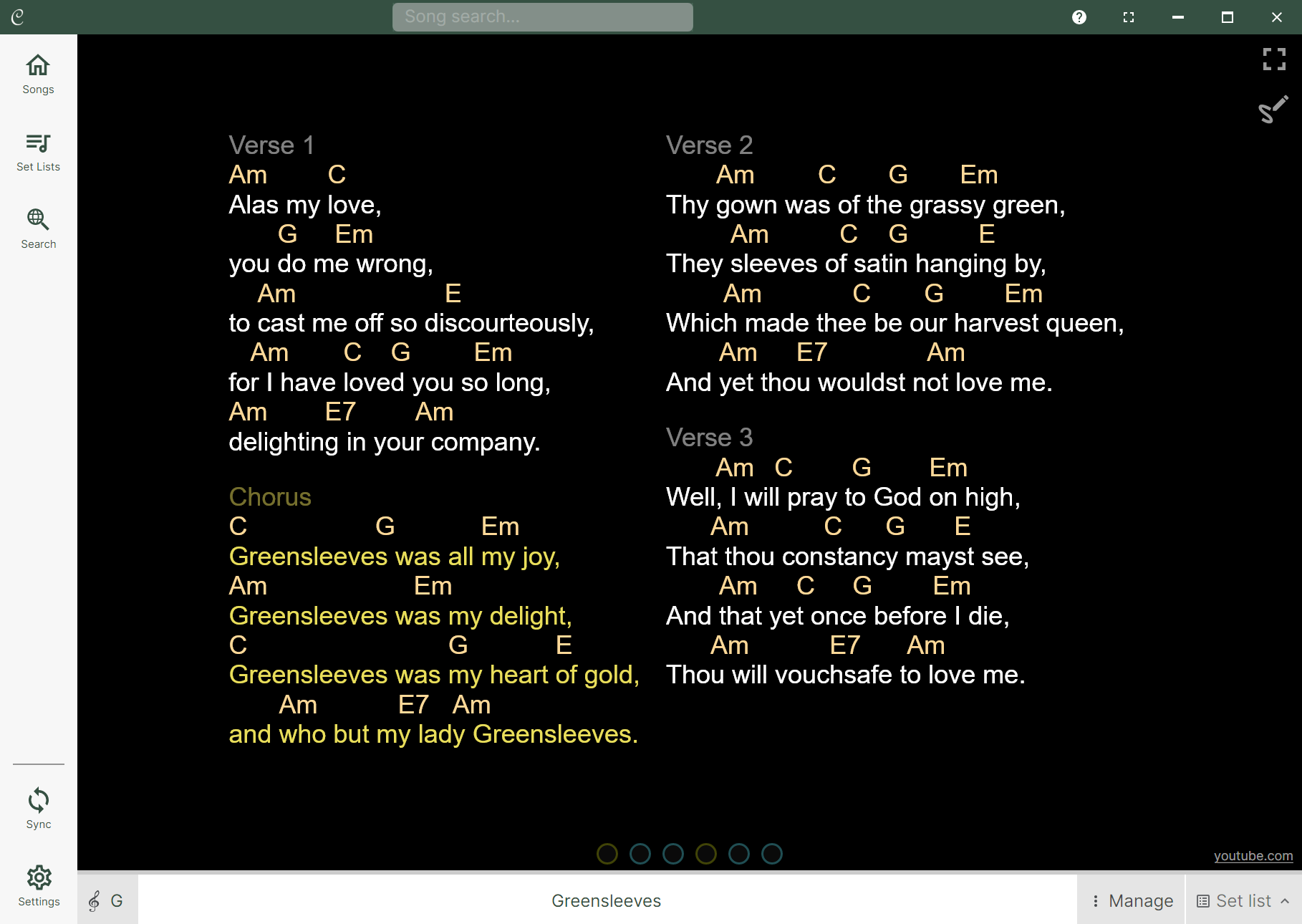
Starting a song
How a tap on a song in the library behaves depends on how wide your window is:
- Wide window - a single tap plays the song into the player pane beside your library. A double-tap (or double-click) plays it and goes full screen.
- Narrow window or phone - a single tap just selects the song; a double-tap plays it and goes full screen.
You can also play the selected song using the play button in the toolbar or in the song preview.
💡 Bringing a song back into view: once a song is playing you can tap its title in the player controls to jump back to it.
Player controls
The player controls at the bottom have different options depending on whether you’re playing a single song or a set list.
Once a song is playing, these controls are visible at the bottom of the screen wherever you are in the app. You can quickly get back to the song or set list you’re playing by tapping on the song title.
Playing a single song
When playing a single song the controls are simple:

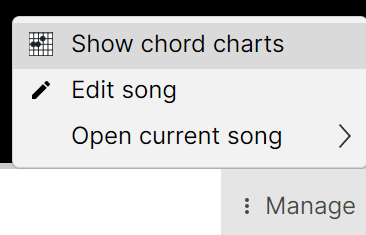
You can use the Key selector button to quickly change the key and capo of the song while you’re playing it. The Manage menu (three vertical dots) gives you quick access to actions like showing the chords for the song or opening it in an external app:
Playing set lists
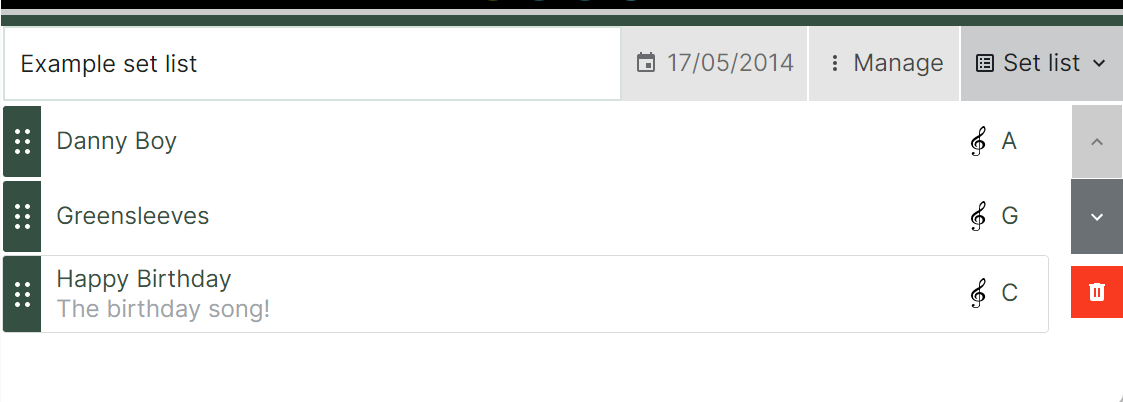
When playing a set list, the player controls also include a button to hide and show the set list:

Tapping on the set list expands it, showing the songs in the set list editor. You can tap any song to quickly jump to it:
Switching between playlist songs
When playing a set list, swiping left and right on the song will move between songs in the set list.
When in paginated mode, swiping left and right moves between pages of the song. Once all pages are exhausted, swiping continues to the next song in the set list. You can also use the next and previous buttons in the player controls to move between songs regardless of the pagination state.

Other player features
In the top right of the screen, there are additional feature buttons:
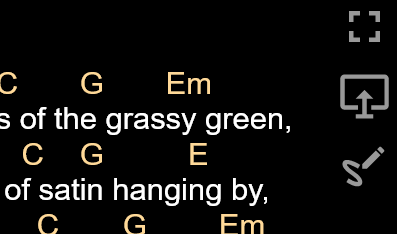
From top to bottom, these buttons are:
- Full screen - immerses you in the song, hiding the song library, set list and toolbars so the song fills the screen. You can still swipe between songs in a set list while in full screen mode. See Full screen below for how to bring the library and controls back, or press the back button to leave full screen and return to your library.
- Present to external display - shows the song on an external display, useful for larger audiences or stage setups.
- Ink annotations - lets you draw directly on the song.
💡 The external display button is only visible if you have external monitor support enabled in the settings and an external monitor connected.
Full screen
Going full screen hides the song library, set list and player controls so the song fills the whole screen - ideal for performing. Whether the library starts hidden as soon as you enter full screen is controlled by the Hide library in full screen setting under Settings / Interface.
There are two ways to bring things back without leaving full screen:
- Reveal the library - tap the reveal button in the top left of the player. This brings the song library back into view so you can pick another song. If your set list is docked to the left or right, it reappears alongside the library.
- Reveal the player controls - on a desktop, move the mouse to the bottom of the screen; on a touch device, tap the bottom of the screen. The player controls slide back up, and if your set list is docked at the bottom it reappears with them.
💡 On phone-sized devices the library and set list always fill the screen while playing, so the reveal button and set list docking options aren’t shown.