
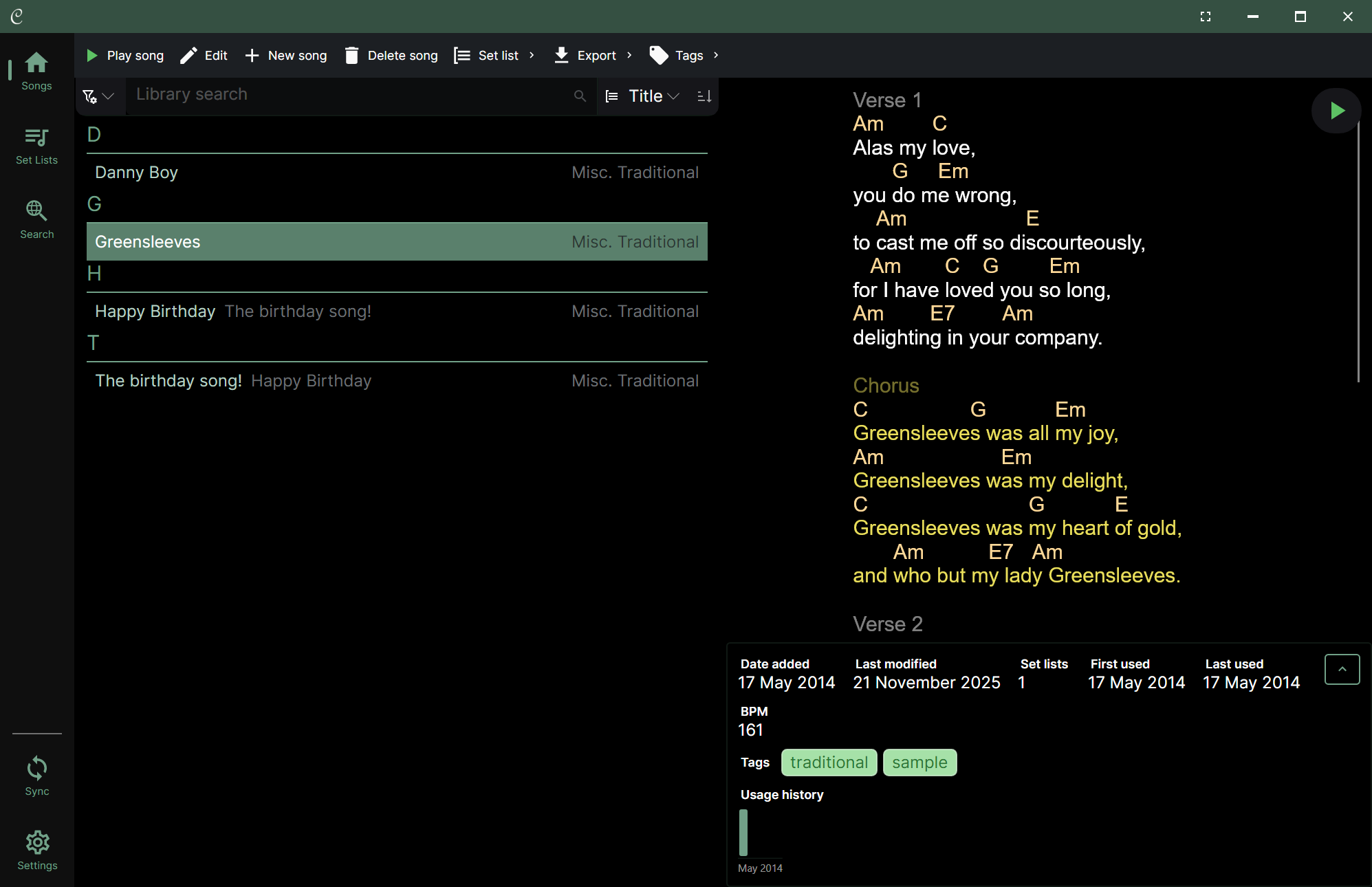
When your window is wide enough, the pane on the right is the song player: playing a song shows it here, beside your library, rather than taking you to a separate screen. On narrow windows and phones the player fills the screen instead. A playing set list can also be docked along the bottom or to the left or right, so it stays beside your library while you play.
The navigation bar
The navigation bar will appear at the side or bottom of the screen, depending on the orientation of your device. You can use this to navigate between the different sections of the app.

- Song library - where you can view and manage all of your songs
- Set list library - where you can view and manage all of your set lists
- Online search - where you can search for songs online
- Syncing and importing - where you can sync your songs and set lists with other devices and import songs from other sources
- Settings - where you can configure various aspects of the app
💡 On Windows, a back button appears in the window title bar as you move around the app, giving you a quick way to step back to where you were.
Toolbars
Most screens have a toolbar at the top with various actions related to that screen. For example, in the song library, you can add a new song, search for songs and access bulk actions from the toolbar:

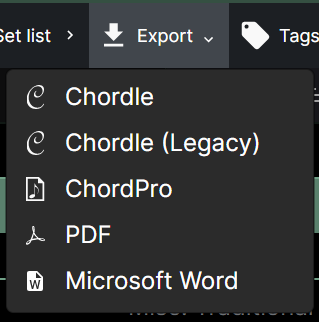
Some actions have sub-actions associated with them, which you can access by tapping on them. For example, the Export button allows you to choose the format you want to export in:
Library lists
You can quickly navigate around a library by zooming out to headings only using one of the following methods:
- 👆 Pinch to zoom out
- 👆🖱️ Tap on any of the headings
- 🖱️ Hold down CTRL and scroll down with the mouse wheel
From here, tap on the section you want to navigate to, and the library will zoom back in to that section. Alternatively, you can pinch to zoom back in or hold down CTRL and scroll up with the mouse wheel.
Selecting library items
Normally you will select a single item by tapping on it, but you can also select multiple items by:
- Tapping the multi-select toggle button in the library toolbar
- 👆 Long pressing on an entry to select it, and then tapping on other entries to add them to the selection
- 🖱️ Holding down CTRL and clicking on entries to select them
- 🖱️ Right clicking on an entry
To exit multi-select mode, you can:
- Tapping the multi-select toggle button in the library toolbar again
- 👆 Long press anywhere on the list
- 🖱️ Right click anywhere on the list
Keyboard shortcuts
Many actions in the app have keyboard shortcuts associated with them, which you can preview by holding down CTRL and ALT together:

Spinner controls
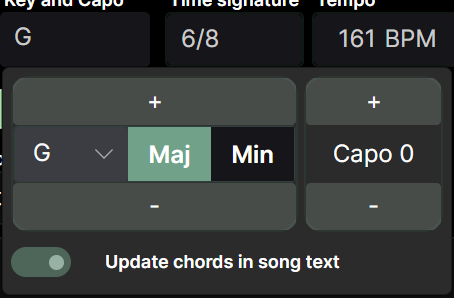
Some actions have spinner controls associated with them, which allow you to quickly adjust a value by holding down the button or using the up and down arrow keys. For example, the key selector control in the song editor has spinners for quickly adjusting the key and capo up and down:
💡 🖱️ You can also adjust the value by using the mouse wheel.